



Gen AI

Date

Written by

Workbench

Free PCB Design Tools in 2026: Quilter, KiCad, and CircuitMaker Compared

Date

Updated

January 15, 2026

Originally published

January 15, 2026

Read the Full Series

This article is one part of a walkthrough detailing how we recreated an NXP i.MX 8M Mini–based computer using Quilter’s physics-driven layout automation. 

TL;DR

There is no single "best" free PCB tool. The three covered here solve different problems:

  • KiCad is a free, open-source EDA suite for full schematic-to-fabrication PCB design. Best if you want offline, local-only work on Windows, macOS, or Linux.
  • CircuitMaker is Altium's free EDA tier, built on the Altium Designer engine. Best if you want the Altium workflow at no cost and accept Windows-only, cloud-hosted projects.
  • Quilter is a physics-driven AI for PCB placement and routing automation. It plugs into Altium, KiCad, Cadence Allegro/OrCAD, and Siemens Expedition. Best for trying AI layout on a non-sensitive design before paying for the commercial tier.

KiCad and CircuitMaker compete on being complete free EDA suites. Quilter doesn't. It's layout automation that runs on top of the CAD tool you already use.

If you searched "free PCB tools" and landed here, you're likely in one of three situations: you're a student or hobbyist starting out, you're an engineer evaluating cheaper alternatives to your team's commercial stack, or you're trying to figure out whether AI layout automation is real yet without paying to find out.

This article won't tell you there's one "best" tool. Quilter, KiCad, and CircuitMaker solve different problems, and the right pick depends on what you're trying to do.

A note up front: these three tools aren't direct competitors in the usual sense. KiCad and CircuitMaker are full EDA suites with schematic capture and PCB layout. Quilter is a placement and routing automation tool that plugs into your existing CAD workflow (Altium, KiCad, Cadence, or Siemens Expedition). You could reasonably use Quilter and KiCad together. Comparing them on a feature checklist makes it look like they're the same kind of product. They aren't.

With that out of the way, here's what each tool actually is and where its free tier ends.

What Each Tool Is

KiCad: A Full Open-Source EDA Suite

KiCad is a free, open-source EDA suite for schematic capture and PCB layout, distributed under GPLv3. There's no paid tier, no account requirement, and no usage limit to bump into. It runs on Windows, macOS, and Linux, supports up to 32 copper layers, and the internal coordinate system allows boards up to roughly 4 m by 4 m. In practice, that means there's no board size or layer ceiling you'll hit doing normal work.

What you get is schematic capture, PCB layout, a footprint library, a 3D viewer, and the ability to generate Gerbers and drill files for any fab house. What you don't get is AI-driven placement or routing. The built-in routing is interactive (push-and-shove style), with manual control over every trace.

If you want full local ownership, no cloud account, and a stable open-source toolchain you can trust for years, KiCad is the cleanest answer in this comparison.

CircuitMaker: Altium's Free Tier, With Cloud Strings Attached

CircuitMaker is Altium's free PCB design tool, built on the same underlying engine as Altium Designer. It supports 16 signal and 16 plane layers, has no PCB dimension restriction, and includes the Situs autorouter. CircuitMaker 2.0 allows up to 5 private projects per user, with everything stored in your Altium 365 Personal Space.

There are real constraints. Projects live in the Altium 365 cloud, not locally on your machine. The supported platform is Windows only. An internet connection is part of the workflow. And while you can have 5 private projects, the tool is built around a community-sharing model where most projects are public.

If you want a workflow that feels like Altium without paying for an Altium license, and you're comfortable with the cloud and Windows-only constraints, CircuitMaker is a reasonable fit. If you need offline work, macOS or Linux support, or unlimited private projects, look elsewhere.

Quilter: Physics-Driven Layout Automation, With a Free Tier for Exploration

Quilter is a physics-driven AI for PCB placement and routing automation. It reasons from physics constraints (bypass cap placement, differential pair impedance, power delivery, manufacturing rules) rather than purely geometric maze-solving. It integrates with Altium (most mature), KiCad, Cadence Allegro and OrCAD, and Siemens Expedition. You upload a prepared design and download a routed board file back into the CAD tool you started in.

Quilter's free tier exists so engineers can try the tool on educational or open-source designs before deciding whether to engage commercially. The free tier is fully functional in the sense that you get the same placement and routing engine paying customers use. There's no separate "lite" version.

There are two important caveats:

Designs submitted to the free tier are used to validate and improve Quilter's models. Uploads contribute to our reinforcement learning pipeline. We don't share your files with other users or third parties, but we do use them internally for model training. If your design contains IP you can't expose, the free tier is not the right environment for it.

The free tier isn't designed for production work. It exists for learning, exploration, and evaluating fit. If you want to use Quilter on a board you intend to manufacture and own commercially, you have to run it through our paid commercial tier, which provides a private workspace (SOC 2 Type II), no training on your files, and per-project pricing.

For the boards Quilter handles well today (100 to 1,000 components per board, best performance on 2,000 to 5,000 pins to route, and pin densities under 20%), the free tier is a fair way to see what physics-driven layout produces on a design you don't mind sharing.

Side-By-Side: What You Actually Get

Capability KiCad CircuitMaker Quilter (Free Tier)
Cost to start Free, open source (GPLv3) Free (requires Altium account) Free for educational and open-source use
Schematic capture Yes Yes No
PCB layout (manual) Yes Yes No
Physics-driven placement and routing automation No No (includes Situs autorouter) Yes
Operating systems Windows, macOS, Linux Windows only Browser-based (uploads to cloud)
Offline / local-only work Yes No (Altium 365 cloud) No (cloud workflow)
Account required No Yes (Altium 365) Yes
Private projects Unlimited (local files) Up to 5 (CircuitMaker 2.0) No private workspace on free tier
IP protection on submitted files N/A (local) Private projects supported Files contribute to Quilter’s model training
Layer ceiling 32 copper layers 16 signal + 16 plane No layer-count limit imposed by the tool
Board size limit None practical (~4 m × 4 m max) None stated No dimension limit imposed by the tool
Suited for Full free PCB design, local control Altium-style workflow at no cost Trying AI layout automation on a non-sensitive design

Which Free PCB Tool Should You Choose?

Pick KiCad if you want to design boards end-to-end without a cloud account, you want everything to stay on your machine, you're on macOS or Linux, or you care about open-source software for principled reasons. It's the most "no strings attached" option here.

Pick CircuitMaker if you specifically want the Altium look and feel, you're on Windows, and you can work with up to 5 private projects in the cloud. It's a fine ramp into Altium's ecosystem.

Try Quilter's free tier if you want to see what AI-driven placement and routing actually produces on a real design, you have an open-source or educational board to test with, and you're comfortable with Quilter using that design to improve its models. If you have proprietary IP on the board, don't use the free tier. Use a commercial Quilter, or one of the other tools.

You can also use these together. A common pattern: schematic and board outline in KiCad, placement and routing automation in Quilter, cleanup and manufacturing outputs back in KiCad. We support KiCad as a direct integration.

What the Free Tier Doesn't Get You

Here's what's actually missing from Quilter's free tier compared to commercial Quilter:

  • A private workspace. Free tier files contribute to our model training. Commercial customers get an isolated, SOC 2 Type II compliant workspace where their designs are not used for training.
  • Self-hosted deployment. The free tier is only available via your browser and cannot be hosted within your company infrastructure. Commercial tier offers self-hosted deployment within your organization’s own AWS, GCP or Azure infrastructure.
  • Onboarding. Commercial pilots include a guided session (typically 1.5 to 2 hours) where our engineering team helps you set up the schematic, define rooms, configure constraints, and walk through the first submission. The free tier is self-service. You can do it alone, but you'll likely get less out of your first run.

The feature set Quilter runs is the same in both tiers. The difference is privacy, support, and the operating model.

The Bottom Line

If your goal is to design and manufacture boards entirely for free, KiCad is the most complete answer. If you want to learn or work inside the Altium ecosystem at no cost, CircuitMaker covers that lane. If you want to see whether physics-driven AI layout actually works on a real design, Quilter's free tier is the way to test it, with the caveats above.

If you're an engineering team with a backlog of boards and real delivery dates, the conversation moves past free tiers. That's what commercial Quilter is for: a private workspace, guided pilots, and pricing tied to the projects you ship.

Either way, the tool that fits depends on the problem you're solving. We'd rather you pick the right one than the one that ranks well on a list.

Frequently Asked Questions

Is KiCad really free for commercial use?

Yes. KiCad is licensed under GPLv3, with no paid tier and no account requirement. You can use it on commercial products, manufactured boards, and revenue-generating work without restriction. The only "cost" is your time learning it.

Is CircuitMaker really free?

Yes, but with conditions. CircuitMaker is free to use, but requires an Altium 365 account, runs only on Windows, and stores your files in Altium's cloud. The free tier allows up to 5 private projects per user. Beyond that, projects need to be published to the CircuitMaker community.

Is KiCad or CircuitMaker the better free option?

It depends on what you need. KiCad is better if you want offline, local-only work, cross-platform support (macOS or Linux), unlimited private projects, or fully open-source software. CircuitMaker is better if you want an Altium-style workflow specifically, you're on Windows, and 5 private projects covers your needs.

Is Quilter free?

Quilter has a free tier intended for educational and open-source designs. The free tier runs the same physics-driven layout engine as the commercial product. The trade-off is that designs you submit to the free tier are used to improve Quilter's models. For production work or anything with IP concerns, use commercial Quilter.

Does Quilter replace KiCad or work with it?

It works with KiCad, not against it. Quilter is a placement and routing automation tool that integrates with KiCad as one of its supported CAD environments. A common workflow is: schematic capture and final cleanup in KiCad, placement and routing automation in Quilter, manufacturing output generation back in KiCad.

Can AI actually design PCBs?

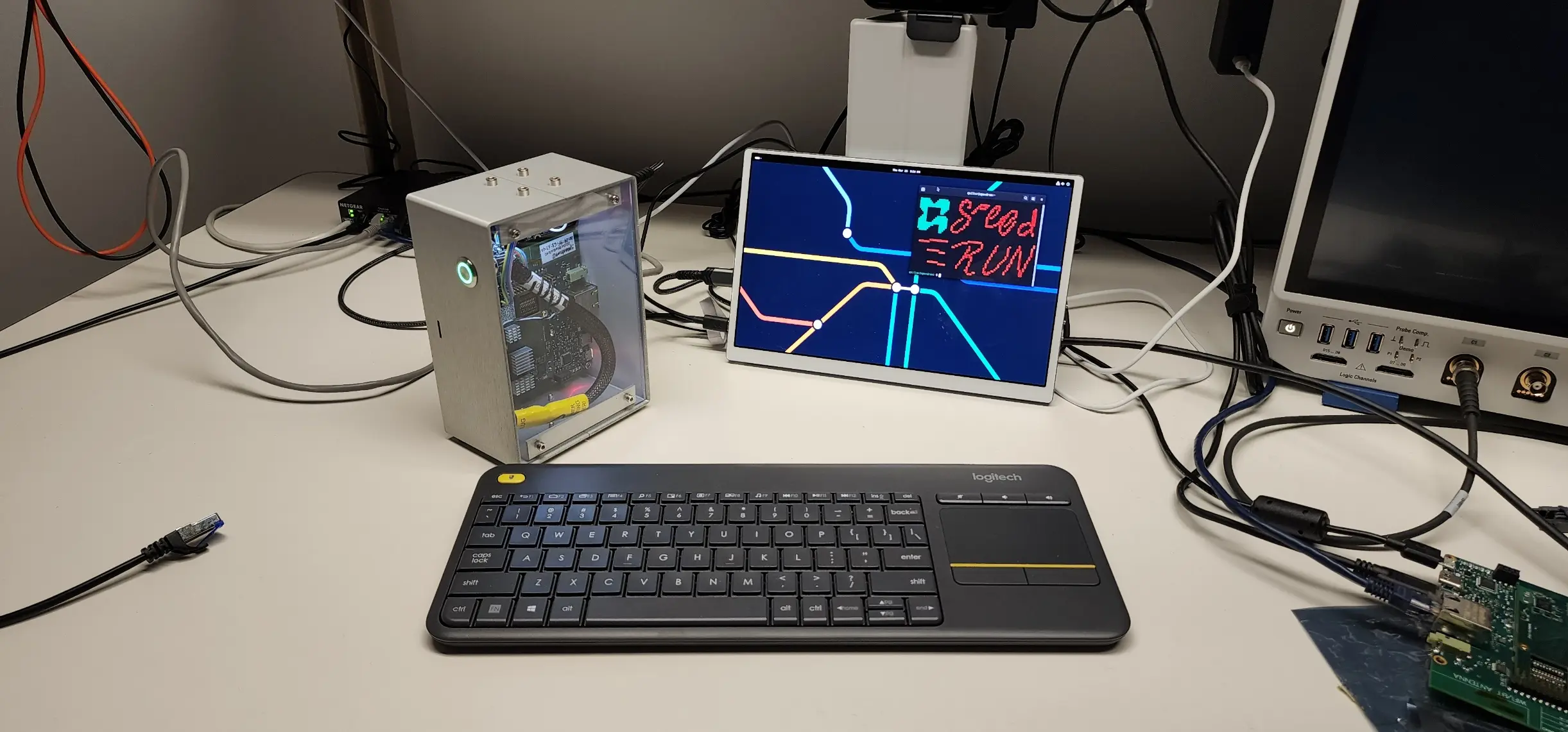
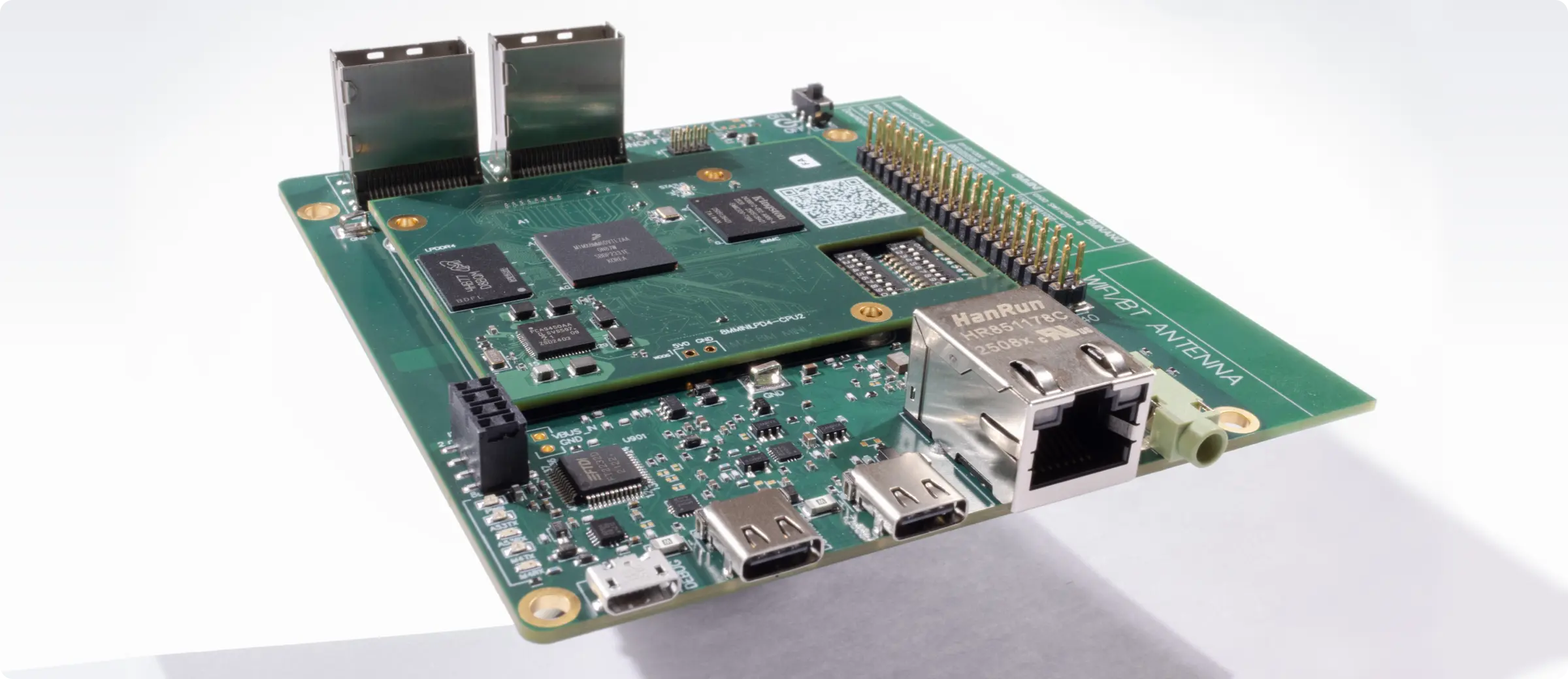
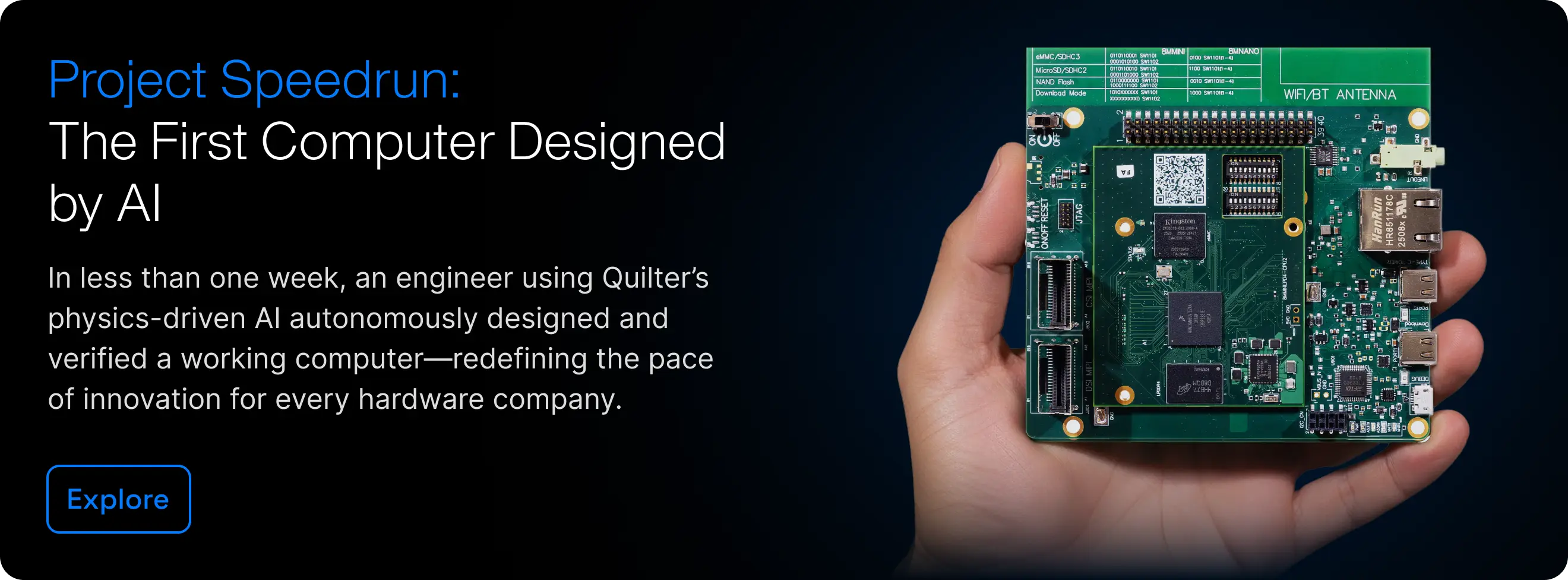
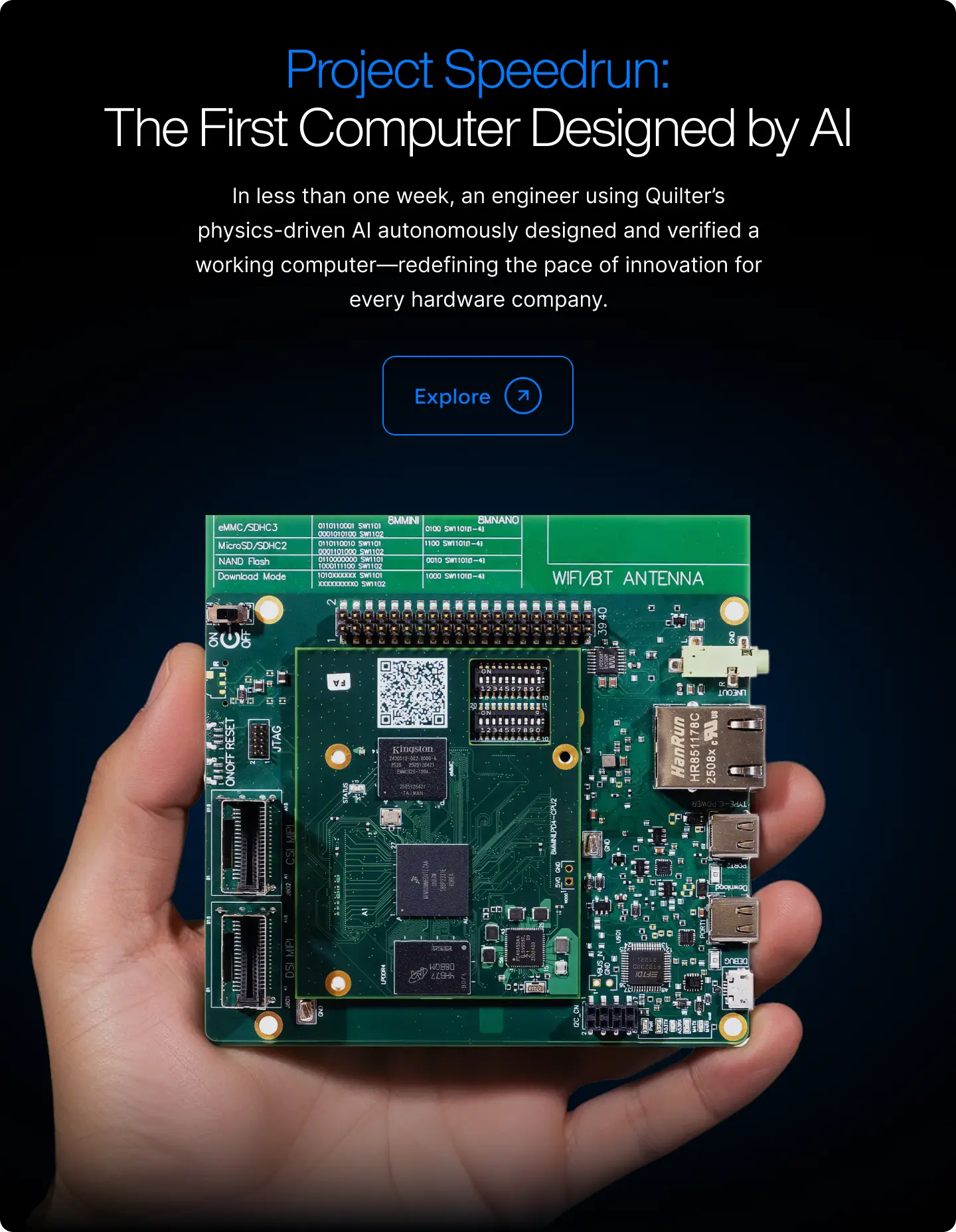
Yes, within scope. AI tools like Quilter can perform component placement and trace routing on real boards today. Project Speedrun, a December 2025 milestone from Quilter, fully validated a complete Linux-capable motherboard with DDR4, ethernet, USB, HDMI, and graphics support, designed with AI layout automation. Current production performance is strongest on boards with 100 to 1,000 components and 2,000 to 5,000 pins to route, at pin densities under 20%. RF nets should be pre-routed before submission; Quilter handles the rest.

Is the Quilter free tier safe for proprietary designs?

No. Projects submitted through the free tier contribute to Quilter's model training. Files are not visible to other users or shared with third parties, but they are used internally. For proprietary IP, use Quilter's commercial tier, which provides a private workspace (SOC 2 Type II) and never trains on customer designs.

What size of board can Quilter actually handle?

Today, Quilter works best on boards with 100 to 1,000 components and 2,000 to 5,000 pins to route, at pin densities under 20%. There's no inherent pin limit, but performance is strongest in that range. Current capabilities use through-hole vias only, with blind and buried vias in development. BGA fan-outs are in beta and length matching is in development. RF nets should be pre-routed before submission.

Sources

Altium. "CircuitMaker: Free PCB Design Software." Accessed May 14, 2026. https://www.altium.com/circuitmaker.

Altium. "Working with Design Projects." CircuitMaker Technical Documentation. Accessed May 14, 2026. https://www.altium.com/documentation/altium-circuitmaker/quickstart-design-projects.

KiCad. "PCB Editor." KiCad EDA Documentation, version 9.0. Accessed May 14, 2026. https://docs.kicad.org/9.0/en/pcbnew/pcbnew.html.

Try Quilter for Yourself

Project Speedrun demonstrated what autonomous layout looks like in practice and the time compression Quilter enables. Now, see it on your own hardware.

Get Started

Validating the Design

With cleanup complete, the final question is whether the hardware works. Power-on is where most electrical mistakes reveal themselves, and it’s the moment engineers are both nervous and excited about.

Continue to Part 4

Cleaning Up the Design

Autonomous layout produces a complete, DRC'd design; cleanup is a brief precision pass to finalize it for fabrication.

Continue to Part 3

Compiling the Design

Once the design is prepared, the next step is handing it off to Quilter. In traditional workflows, this is where an engineer meets with a layout specialist to clarify intent. Quilter replaces that meeting with circuit comprehension: you upload the project, review how constraints are interpreted, and submit the job.

Continue to Part 2