






Read the Full Series
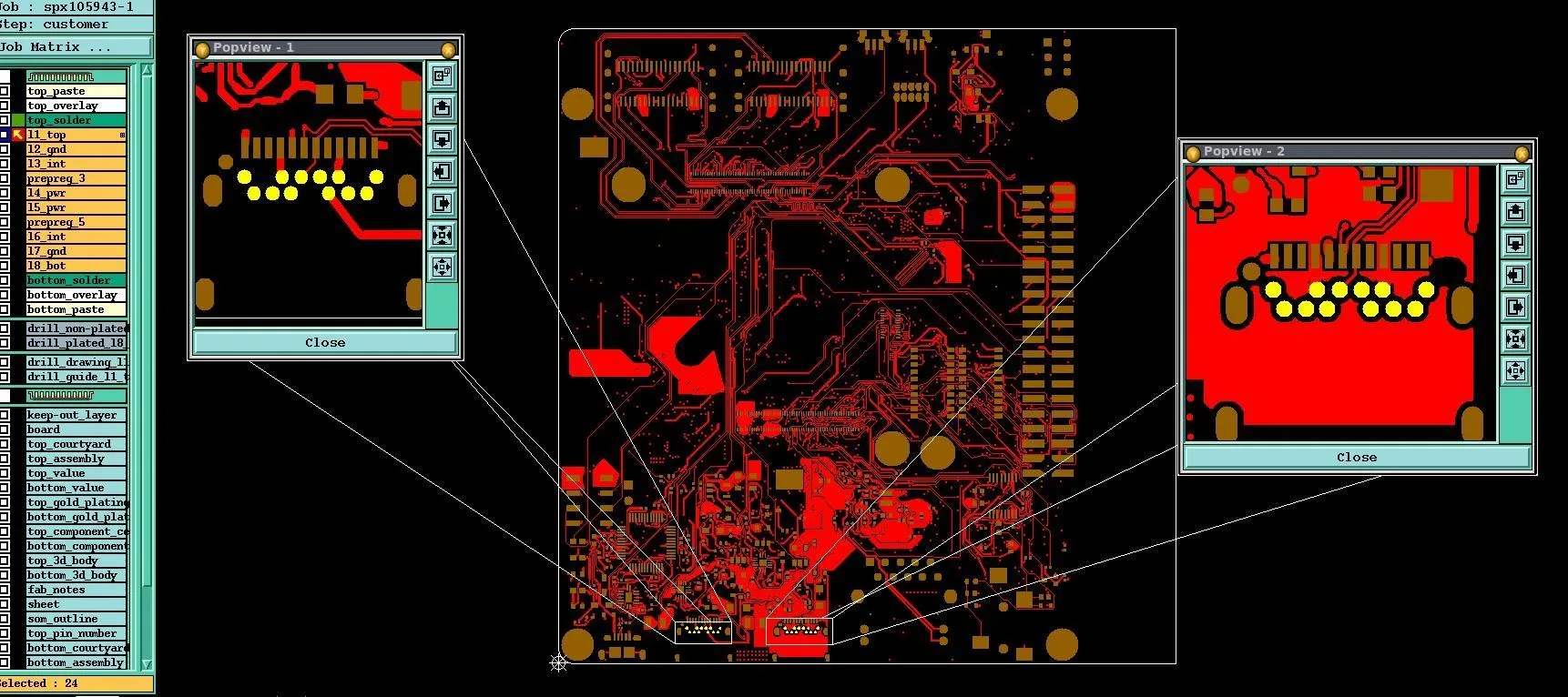
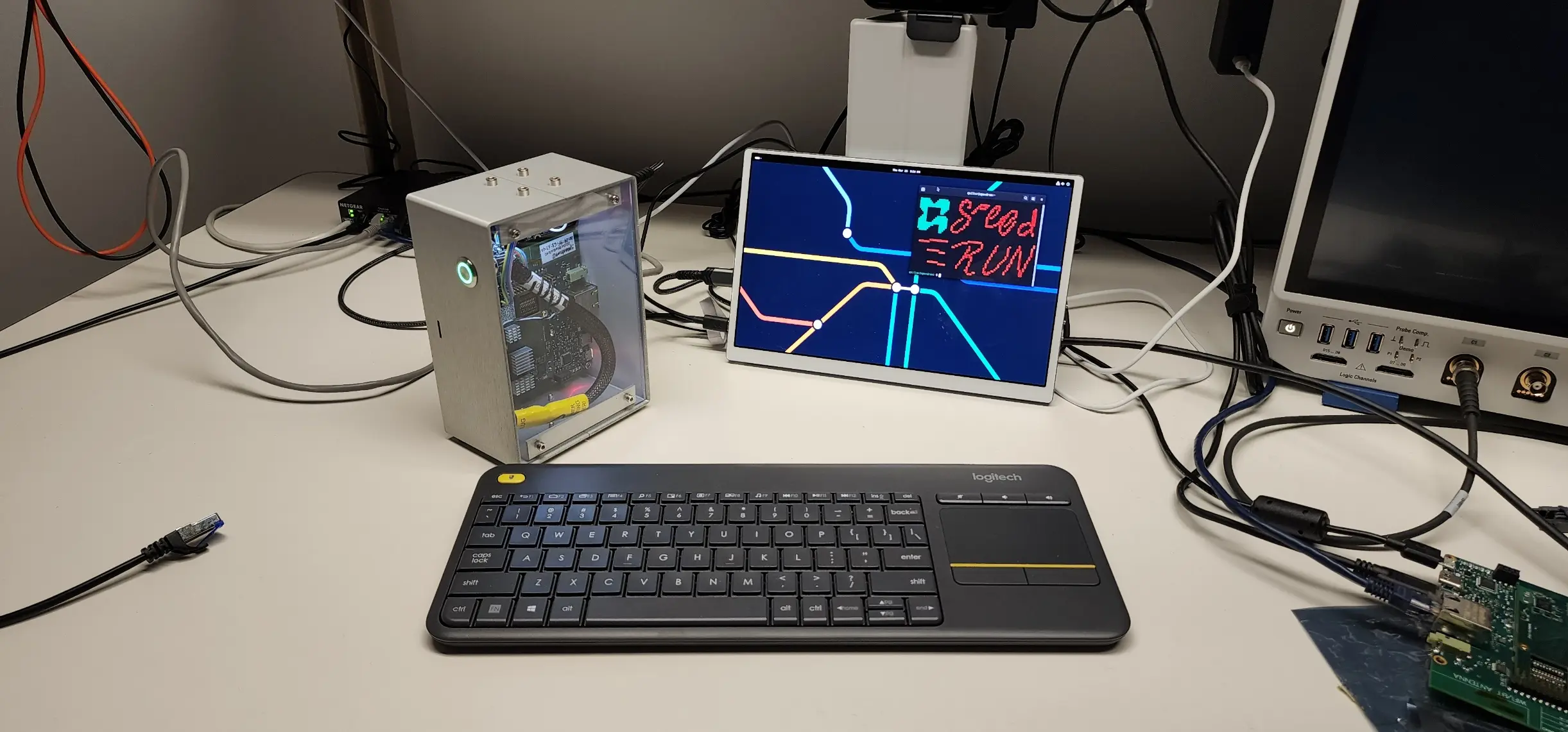
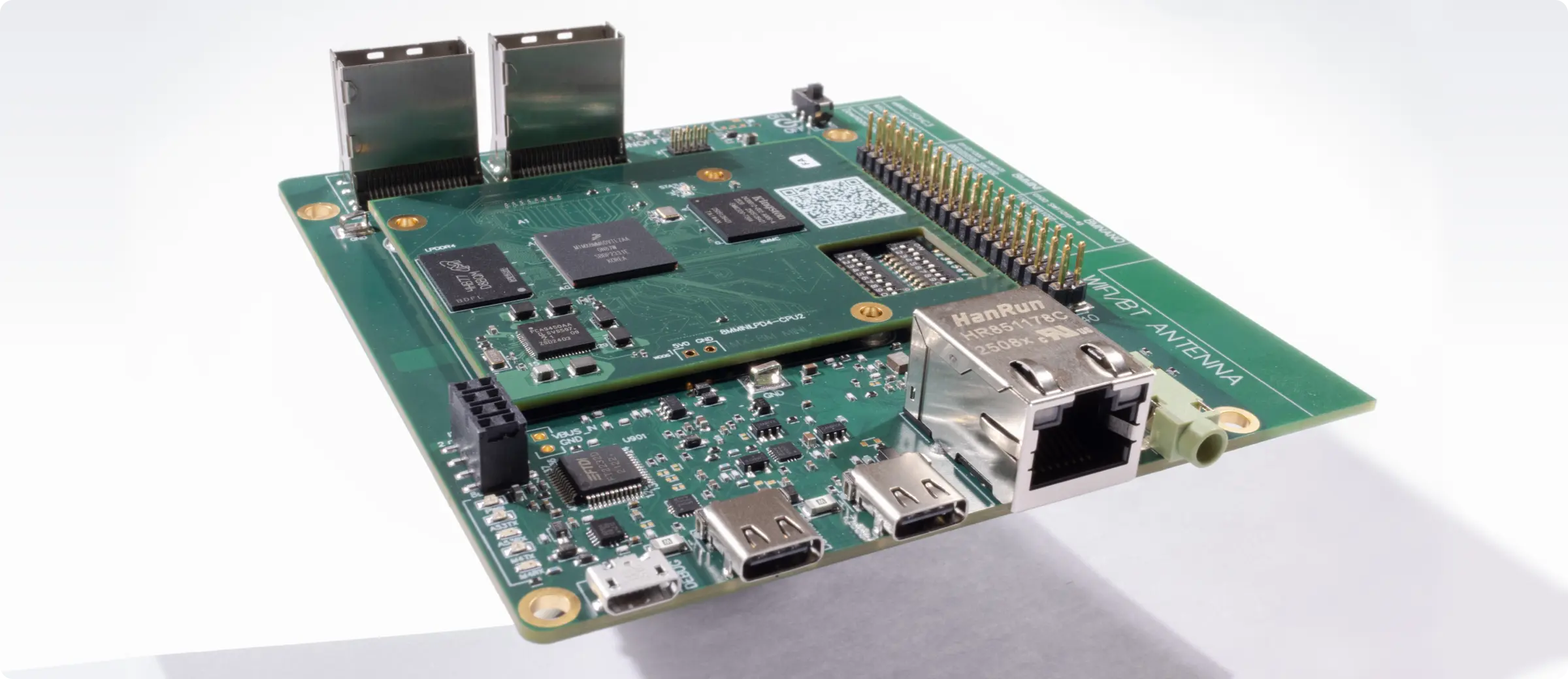
This article is one part of a walkthrough detailing how we recreated an NXP i.MX 8M Mini–based computer using Quilter’s physics-driven layout automation.
Wir haben viele Fragen dazu erhalten, wie man Daten aus Flux.ai exportiert und ob wir beim Migrationsprozess helfen können. Quilter ist unabhängig davon, welches ECAD-Tool Sie verwenden. Wir unterstützen die gängigsten Formate und bevorzugen oder empfehlen kein bestimmtes Tool. Dieser Leitfaden richtet sich an alle, die uns um Hilfe bei der Migration gebeten haben. Sollte etwas technisch nicht korrekt sein, lassen Sie es uns wissen, damit wir es korrigieren können. Wir haben nach Möglichkeit auf die Originaldokumentation verlinkt und werden diesen Leitfaden aktualisieren, sobald sich die Export- und Importunterstützung von Flux.ai oder den Ziel-Tools ändert.
Dieser Leitfaden erläutert, was Sie aus Flux.ai exportieren können, wofür diese Dateien nützlich sind und wie Sie Ihre PCB-Designabsicht in einen neuen Workflow übertragen.
Kann man ein Flux.ai-Projekt direkt in ein anderes ECAD-Tool migrieren?
Nein, es gibt keine Ein-Klick-Migration für Projekte in andere Tools.
Sie können eine native Flux .flx-Projektdatei exportieren, die von Flux als vollständiges Projekt-Backupbezeichnet wird. Wir haben jedoch keinen öffentlich dokumentierten Importer gefunden, der .flx-Dateien in ein natives KiCad-, Altium-, Cadence- oder Siemens-Projekt umwandelt. Betrachten Sie .flx als Ihr Flux-natives Archiv, nicht als garantierte Migrationsdatei.
Wenn Sie Flux.ai verlassen, sollte Ihr Ziel sein, genügend Designinformationen zu bewahren, um das Projekt an anderer Stelle fortzusetzen. Exportieren Sie alles, was Flux Ihnen bietet, aber in den meisten Fällen ist der praktikabelste Migrationsweg, den Schaltplan und das Board in der Zielumgebung neu aufzubauen und die exportierten Dateien dabei als Referenz zu nutzen.
Schritt 1: Exportieren Sie alles, bevor Sie den Zugriff verlieren
Bevor Sie das Tool wechseln, exportieren und archivieren Sie jede verfügbare Datei.
Überprüfen Sie, ob:
- Die Gerber-Daten alle erwarteten Layer enthalten.
- Die Bohrdateien vorhanden sind.
- Die Stückliste (BOM) bei Bedarf echte Hersteller-Teilenummern enthält.
- Die Bestückungsdaten (Pick-and-Place) die erwarteten Bezeichner und Rotationen enthalten.
- Die Netzlisten lesbar und nicht leer sind.
- Die 3D-Exporte die korrekte Board-Kontur und mechanische Ausrichtung widerspiegeln.
Schritt 2: Entscheiden Sie, ob Sie Fertigungsdaten oder ein bearbeitbares Design benötigen
Wenn die Platine fertig ist und Sie sie nur fertigen lassen möchten, müssen Sie das Design möglicherweise gar nicht migrieren. Alles, was Sie benötigen, sind Fertigungsdaten, Stückliste (BOM), Bestückungsdaten und eine Prüfung durch den Hersteller.
Wenn an der Platine noch technische Arbeiten, Überarbeitungen, Konformitätsprüfungen, eine Übergabe an das Team oder eine langfristige Wartung erforderlich sind, benötigen Sie ein bearbeitbares Design in der Zielumgebung.
Schritt 3: Wählen Sie Ihr Ziel-Tool
Eine Migration ist auch eine Gelegenheit, sich für das Tool zu entscheiden, das Sie künftig tatsächlich nutzen möchten.
Von Flux.ai zu KiCad
Die meisten, die uns um Rat bei der Migration von Flux.ai bitten, sind Hobbyisten, Studenten oder Ingenieure am Anfang ihrer Karriere. Viele von ihnen entscheiden sich für KiCad, da es kostenlos und Open Source ist. Zudem gibt es eine große Online-Community und zahlreiche Tutorials zur Anwendung. KiCad kann eine gute Wahl für Prototypen, Nebenprojekte und sogar für die professionelle Arbeit sein. Die KiCad-Community hat viele Migrationsschritte bereits dokumentiert, darunter einen Thread zum Reverse Engineering von Flux zu KiCad und einen allgemeinen Leitfaden zur Rekonstruktion eines Projekts aus Gerber-Daten.
Von Flux.ai zu Altium
Wenn Sie Flux-Dateien nach Altium exportieren müssen, verwendet Ihr Team wahrscheinlich bereits Altium Designer und Sie haben mit Flux experimentiert. Falls dies der Fall ist, prüfen Sie, ob Ihr Schaltplan ursprünglich in Altium erstellt wurde, bevor Sie ihn in Flux importiert haben. Das Auffinden dieses ursprünglichen Projekts könnte Ihnen viel Zeit sparen. Flux kann zwar Altium-ASCII-Schaltpläneimportieren, aber das ist eine Einbahnstraße; es gibt keinen direkten Weg zurück in ein natives Altium-Projekt.
Von Flux.ai zu Cadence oder Siemens
Bisher hat uns niemand nach einem Wechsel von Flux zu Cadence oder Siemens gefragt, aber der Vollständigkeit halber führen wir es hier auf. Dies sind Unternehmensumgebungen, bei denen es bei einer Migration weniger um das Öffnen einer Datei geht, sondern vielmehr darum, das Design innerhalb der kontrollierten Prozesse des Unternehmens neu zu erstellen: Bibliotheken, Constraints, Lagenaufbau, Prüfungen und Freigaben. Wenn Sie in einem solchen Umfeld arbeiten, verfügt Ihr Team wahrscheinlich über einen dokumentierten Prozess, dem Sie folgen müssen, um ein Projekt zu migrieren oder neu anzulegen.
Von Flux.ai zu Quilter
Ein Wort zu Quilter, da wir oft danach gefragt werden: Da wir keine Schaltpläne erfassen und kein CAD-Editor sind, ist Quilter kein Ersatz für Flux, und es gibt keinen „Migration zu Quilter“-Pfad im üblichen Sinne. Wenn Sie einen Schaltplan sowie eine erste Platinendatei oder einen Platinenumriss in Altium, KiCad, Cadence oder Siemens haben und die entsprechenden Constraints definieren können, kann Quilter Platzierungs- und Routing-Vorschläge generieren und fertige Layouts im selben Dateiformat zurückgeben, in dem sie empfangen wurden. Mehr dazu weiter unten.
Schritt 4: Rekonstruieren Sie den Schaltplan anhand der besten verfügbaren Quellen
No matter which tool you choose, start with the schematic. It is the authoritative source.
A note on AI-powered schematic tools: Most are designed to generate circuits from a simple description. They can speed up the process by acting as a drawing aid for your netlist. Have the symbols and connections created in advance, but check every net against the netlist exported from Flux. If you need to rebuild an existing schematic, do not rely blindly on AI tools; always validate their results.
How to use the exported files:
- Use the Bill of Materials (BOM) to place the correct components.
- Use the schematic netlist to verify connectivity.
- Use screenshots to preserve the structure of the schematic; according to the Flux FAQ, exporting schematics as PDFs is currently not supported.
- Use the Flux .flx backup as a reference archive.
- Use the layout netlist to cross-check connectivity at the board level.
- Use Gerber data and assembly drawings only as a layout reference, not as a source for the schematic.
When rebuilding, pay attention to details that can easily be lost in a netlist-driven process, such as "no-connect" pins, hierarchical sheet structures, as well as design notes and constraints. Engineers often underestimate the effort required to switch between ECAD platforms. Migrating from Flux.ai can be more complex than switching between common industry standards. Large ECAD tools offer import functions for many established EDA formats. However, Flux.ai is not listed in the public import documentation for KiCad or Altium that we are aware of, and we know of no documented .flx importer for the common ECAD tools that Flux users typically ask about.
Step 5: Rebuild or generate the PCB
Once the schematic is complete, you have three options for the PCB layout.
You can route the layout manually. Use the old assembly data and Gerber files to reconstruct the placement and understand the original strategy. Then, drive the new board via the schematic and use your tool's Design Rule Checks (DRC) and Electrical Rule Checks (ERC).
If you lack the time or in-house expertise for the layout, you can hire a service provider or a design bureau. Provide them with the complete package: the rebuilt schematic, board outline, layer stackup, constraints, BOM, assembly data, old Gerber files, mechanical data, and notes on critical nets – not just the Gerber files.
Alternatively, you can use an automated layout engine – and this is where we come in. Quilter is particularly useful when the schematic is finished, the layout becomes a bottleneck, and the complexity of the board falls within the range that Quilter can cover. You can view our current capabilities here https://docs.quilter.ai/about-quilter/what-quilter-does-well and follow our progress here https://www.quilter.ai/changelog.
Many who have contacted us regarding a migration from Flux.ai do not have sufficient experience in PCB layout and had hoped that the Flux AI Copilot would support them in completing it. If you are leaving Flux.ai because the layout became too difficult or too costly, Quilter's free tier might be a good option: https://www.quilter.ai/free-ai-pcb-design.
Kostenaspekte beim Verlassen von Flux.ai
Flux misst die KI-Nutzung mit Agent Compute Units (ACUs). Laut der Dokumentation von Flux hängt der ACU-Verbrauch von der Komplexität der Anfrage und des Projekts ab; es lässt sich nicht im Voraus bestimmen, wie viele ACUs eine Anfrage verbrauchen wird. Kostenpflichtige Tarife beinhalten monatliche ACUs, die nicht in den nächsten Monat übertragen werden können. Zusätzliche Nutzung wird über eine Erhöhung des monatlichen Ausgabenlimits abgerechnet, anstatt Prepaid-Guthaben zu erwerben. Kostenlose Tarife enthalten keine ACUs.
Prüfen Sie bei Quilter insbesondere den Tarif und die Datenschutzbestimmungen bevor Sie vertrauliches geistiges Eigentum hochladen. Der kostenlose Tarif von Quilter eignet sich hervorragend für akademische, private und Hobby-Zwecke. Board-Metadaten und/oder Eingabedateien aus dem kostenlosen Tarif können verwendet werden, um Trainingsrätsel für die KI von Quilter zu erstellen. Enterprise-Designs sind vertraulich und werden nicht für das Training verwendet.
Häufige Fehler beim Wechsel von Flux.ai
Fehler 1: Gerber-Dateien als Grundlage für die Designabsicht betrachten
Gerber-Dateien sind für die Fertigung unerlässlich, aber nicht für die fortlaufende Designarbeit gedacht. Verwenden Sie diese als visuelle und fertigungstechnische Referenz, nicht als primäres Migrationsartefakt.
Fehler 2: Das native .flx-Backup nicht exportieren
Auch wenn Ihr Ziel-Tool die .flx-Datei nicht direkt verarbeiten kann, sollten Sie sie aufbewahren. Sie ist Ihr natives Flux-Archiv des Projekts.
Fehler 3: Nur Fertigungsdateien exportieren
Wenn Sie nur Gerber-Dateien, Bohrdaten, Stücklisten (BOM) und Bestückungsdaten exportieren, fehlen Ihnen möglicherweise wichtige Migrationsreferenzen wie Netzlisten, 3D-Dateien, IPC-2581C und das native Projekt-Backup.
Fehler 4: Das Board neu aufbauen, bevor der Schaltplan fertig ist
Beginnen Sie mit dem Schaltplan. Wenn der Schaltplan fehlerhaft ist, wird es auch das Board sein.
Checkliste für die Migration
Stellen Sie vor dem Verlassen von Flux.ai sicher, dass Sie über Folgendes verfügen:
- Natives .flx-Projekt-Backup
- Gerber- und NC-Bohrdateien
- Stückliste (BOM)
- Bestückungsdaten (Pick-and-Place)
- EDIF-Schaltplan-Netzliste
- IPC-D-356-Layout-Netzliste
- IPC-2581C, falls verfügbar
- STEP-, STL- oder COLLADA-Exporte
- Screenshots oder PDFs der Schaltpläne https://docs.flux.ai/faq/frequently-asked-questions--faq-
- Platinenumriss
- Lagenaufbau (Stackup)
- Design-Regeln
- Vorgaben für Differenzielle Paare
- Impedanzanforderungen
- Vorgaben zum Längenausgleich
- Leistungsanforderungen
- Mechanische Sperrflächen (Keepouts)
- Platzierungsvorgaben
- Hinweise zu kritischen Netzen
- Herstellervorgaben
- Versionsverlauf oder beizubehaltende Kommentare
Überprüfen Sie nach dem Import oder der Neuerstellung im Ziel-Tool Folgendes:
- ERC bestanden oder alle Warnungen sind geklärt.
- DRC bestanden oder alle Verstöße sind geklärt.
- Stückliste (BOM) stimmt mit dem ursprünglichen Design überein.
- Netzliste entspricht der ursprünglich beabsichtigten Konnektivität.
- Footprints sind korrekt.
- Platinenumriss und Befestigungslöcher entsprechen den mechanischen Anforderungen.
- Lagenaufbau und Impedanzvorgaben sind definiert.
- Kritische Netze sind mit Constraints versehen oder manuell geprüft.
- Die Gerber-Ausgabe des neuen Tools entspricht dem beabsichtigten Design.
- Ein Ingenieur hat Schaltplan und Layout vor der Fertigung geprüft.
Fazit
Bei der Migration von Flux.ai geht es darum, die Designabsicht zu bewahren. Exportieren Sie das .flx-Projekt-Backup, speichern Sie alle neutralen Dateien, die Flux bereitstellt, bauen Sie den Schaltplan neu auf oder verifizieren Sie ihn, und wählen Sie dann den Layout-Weg, der zu Ihrer Platine passt: manuelles Layout, ein Dienstleister oder automatisiertes Layout.
Häufig gestellte Fragen
Kann ein beliebiges ECAD-Tool Flux.ai .flx-Dateien öffnen?
Zum Zeitpunkt dieser Überprüfung haben wir keinen öffentlich dokumentierten .flx-Importer in den gängigen ECAD-Tools gefunden, nach denen Flux-Nutzer üblicherweise fragen. Flux dokumentiert .flx als natives Projekt-Backup, das Schaltplan- und PCB-Layout-Daten enthält, aber die Unterstützung durch das Ziel-Tool ist entscheidend. Betrachten Sie .flx als Ihr Archiv und exportieren Sie neutrale Dateien für die Migration.
Gibt es einen Flux.ai-zu-KiCad-Konverter?
Keinen zuverlässigen Ein-Klick-Migrationspfad. KiCad dokumentiert Import-Unterstützung für Altium, CADSTAR, Eagle, EasyEDA/JLCEDA, PADS ASCII, gEDA/Lepton und verschiedene Schaltplan-/PCB-Formate, aber Flux.ai .flx ist nicht aufgeführt. Der praktische Weg ist die Rekonstruktion unter Verwendung von Stückliste, Netzlisten, Gerber-Daten, Bestückungsdaten und mechanischen Referenzen.
Kann ich ein Flux.ai-Projekt nach KiCad exportieren?
No, not as a guaranteed one-click migration directly into KiCad. Flux documents various export formats, including manufacturing data, bills of materials (BOM), assembly data, an EDIF schematic netlist, an IPC-D-356 layout netlist, 3D files, IPC-2581C for selected designs, and a native .flx project file. The viable path to KiCad is to export everything, keep the .flx backup, and then rebuild the schematic and board in KiCad using the BOM, netlists, Gerber data, assembly data, and mechanical references.
Can I export a Flux.ai project to Altium?
No, do not expect a clean export of an editable Flux-to-Altium project. While Flux documents the import of Altium ASCII schematics into Flux, this is not the same as exporting a complete Flux design back into a native Altium project. If the design originated in Altium, look for the original source project before rebuilding it.
Does Flux.ai export editable schematics?
Flux documents the export of an EDIF schematic netlist as well as a native .flx project file containing schematic design information. The question during migration is whether your target tool can convert these into a clean, maintainable schematic. For most migrations, you should expect to use the exported netlist and BOM as a reference while rebuilding the schematic in the target tool.
Does Flux.ai export editable PCB layouts?
Flux documents the export of a native .flx project file containing PCB layout information, as well as manufacturing exports, assembly data, the IPC-D-356 layout netlist, and 3D files. None of these automatically result in a board editable in KiCad, Altium, Cadence, or Siemens. Treat the .flx file as a Flux-native archive and use the other exports as references, unless your target tool explicitly supports the imported file.
What is the safest way to migrate from Flux.ai?
Export everything, validate the files, rebuild or import the schematic first, verify connectivity against the netlist, and then rebuild the board manually, with a layout specialist, or using an automated layout tool. Do not rely on Gerber data alone.
Which tool should I migrate to after Flux.ai?
Choose based on your requirements. KiCad is attractive as a free, open-source tool. Altium is common for commercial teams needing integrated design, collaboration, and release workflows. Cadence and Siemens are better suited for formal enterprise environments. Quilter is relevant if your schematic is finished and the layout is the bottleneck, regardless of which ECAD system you choose to migrate to.
Is Quilter a replacement for Flux.ai?
No. Quilter is not a one-to-one replacement for Flux.ai. It is not a browser-based ECAD environment or a schematic generator. It is a physics-based AI layout engine that works based on existing schematic files and constraints, returning finished layouts in the original file format in which they were received.
When is Quilter a good choice after leaving Flux.ai?
When the schematic is finished or can be rebuilt, the layout is the bottleneck, and the board falls within Quilter's currently recommended scope. https://docs.quilter.ai/about-quilter/what-quilter-does-well
Sources
Flux. "Data Portability: Export Formats and Capabilities." Flux Documentation. Accessed June 22, 2026. https://docs.flux.ai/reference/data-portability.
Flux. „Flux ACUs.“ Flux-Dokumentation. Abgerufen am 22. Juni 2026. https://docs.flux.ai/reference/copilot-credits.
Flux. „Häufig gestellte Fragen (FAQ).“ Flux-Dokumentation. Abgerufen am 22. Juni 2026. https://docs.flux.ai/faq/frequently-asked-questions–faq-.
Flux. „Gerber-Exporte und Fertigungsdateien.“ Flux-Dokumentation. Abgerufen am 22. Juni 2026. https://docs.flux.ai/reference/gerber-export.
Flux. „Importieren von Schaltplänen von Cadence und Altium nach Flux.“ Flux-Dokumentation. Abgerufen am 22. Juni 2026. https://docs.flux.ai/reference/reference-import-designs.
KiCad. „Importformate.“ KiCad-Entwicklerdokumentation. Abgerufen am 22. Juni 2026. https://dev-docs.kicad.org/en/import-formats/.
KiCad.info-Foren. „Konvertierung von Flux.ai-Projekten zu KiCad?“ Abgerufen am 22. Juni 2026. https://forum.kicad.info/t/converting-flux-ai-projects-to-kicad/59947.
KiCad.info-Foren. „Reverse Engineering eines KiCad-Projekts aus Gerber-Dateien.“ Abgerufen am 22. Juni 2026. https://forum.kicad.info/t/reverse-engineering-kicad-project-from-gerber-files/30903.
Quilter. „Changelog“. Quilter. Abgerufen am 22. Juni 2026. https://www.quilter.ai/changelog.
Quilter. „Kostenloses KI-PCB-Design“. Quilter. Abgerufen am 22. Juni 2026. https://www.quilter.ai/free-ai-pcb-design.
Quilter. „Nutzungsbedingungen“. Quilter. Abgerufen am 22. Juni 2026. https://www.quilter.ai/terms.
Quilter. „Was Quilter besonders gut kann“. Quilter-Dokumentation. Abgerufen am 22. Juni 2026. https://docs.quilter.ai/about-quilter/what-quilter-does-well.